30 Minute Remote Interview Setup for Candidates and One Practice
30 Minute Remote Interview Setup for Candidates and One Practice
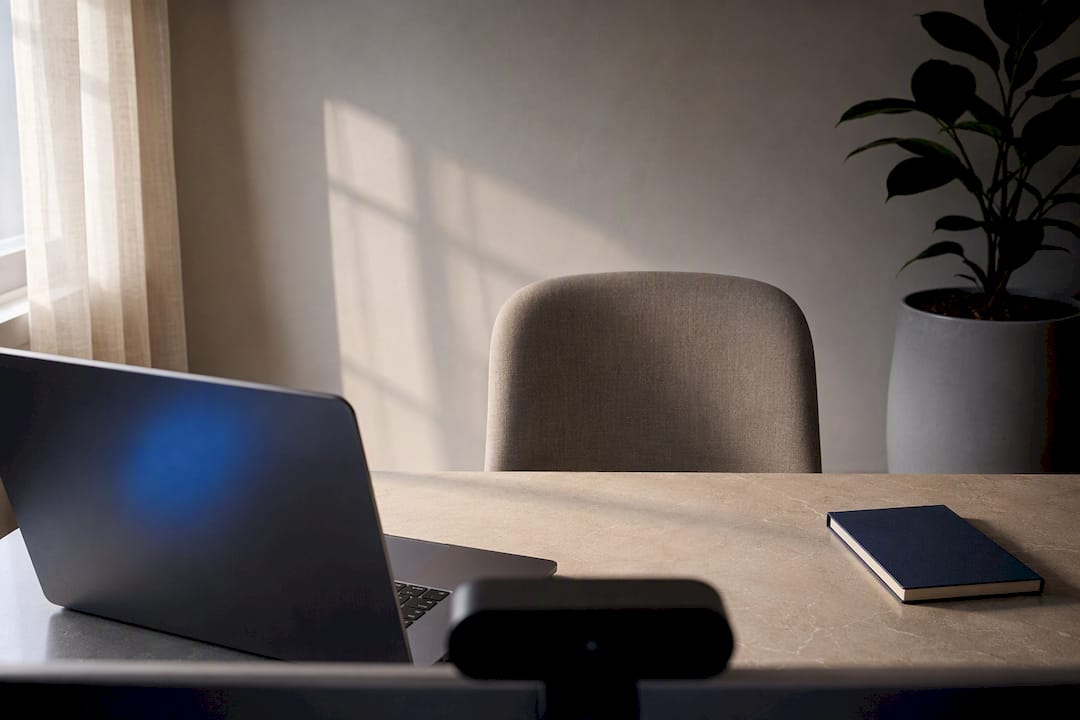
Four moves fix most remote interview setup problems: raise your camera to eye level, face your light source, wear a wired headset or earbuds, and confirm a stable connection with a hotspot backup ready. Audio and connection stability matter more than crisp video, so prioritize those two if you’re short on time. Run the 30-minute checklist below, and treat this as a dress rehearsal for remote-work competence, not just a call.
TL;DR:
- Prioritize stable internet through wired connections or pre-set hotspots, and have backup plans ready to avoid disruptions during the interview.
- Position your camera at eye level and frame from mid-chest up to ensure professional appearance and clear eye contact.
- Face a natural light source, like a window or bounce light off a wall, to enhance your on-screen presence more than upgrading camera quality.
- Use wired earphones or a headset with a microphone and record a test to confirm clear audio before joining the interview.
- Prepare a concise notes page near the camera to maintain eye contact and avoid looking distracted when referencing key points.
Table of Contents
- Pre-Call Checklist: What To Do 10 To 30 Minutes Before
- How Should You Position Your Camera For Interviews?
- Why Lighting Matters More Than You Think
- What’s The Best Audio Setup For A Video Interview?
- How Do You Keep Your Internet From Dropping Mid-Interview?
- Choosing A Background That Won’t Distract The Interviewer
- Checking Your Meeting App And Permissions Before You Join
- The 30-Minute Routine And What To Do When Something Breaks
- What Recorded Practice Reveals That A Tech Check Can’t
- What Should You Wear For A Remote Interview?
- Body Language And Non-Verbal Cues That Read Well On Camera
- How Do You Keep Notes Handy Without Looking Distracted?
- Scheduling Across Time Zones Without The Confusion
- Rehearse Your Answers With Iteration Before The Real Call
- A Reliable Setup Is Part Of The Interview, Not Prep For It
- Sources
Pre-Call Checklist: What To Do 10 To 30 Minutes Before
Interviewers judge your reliability before you say a word. Here’s the sequence:
- Join early, confirm the time zone and the correct meeting link.
- Plug in your laptop, close unnecessary apps, and switch your phone to do-not-disturb.
- Run the platform’s test meeting and confirm camera and microphone permissions are granted.
- Record a short clip or call a friend to check that your audio sounds clear, not muffled.
- Connect your phone hotspot in advance, set out water and notes, and hang a do-not-disturb sign if you share the space.
None of this takes long. It just has to happen in order, every time.
How Should You Position Your Camera For Interviews?
Your camera should sit at eye level, roughly an arm’s length away, framing your head and shoulders with a little headroom above. Prop it too low and you loom over the interviewer like a security cam; too high and you look like you’re hiding. Stack books or use a laptop riser until the lens lines up with your eyes.
Use your laptop’s built-in webcam over a handheld phone whenever possible. If a phone is genuinely your only camera, prop it landscape on a stable stand, not propped against a mug that could slide.
- Sit an arm’s length from the camera, not closer.
- Frame from mid-chest up, with a small gap above your head.
- Look directly at the lens when you’re speaking, not at the interviewer’s video tile.
- Put a small sticky note or dot near the camera lens as a visual reminder to look there.
Pro Tip: Tape a tiny arrow or smiley face right next to your webcam lens. It sounds silly, but it trains your eyes to drift there instead of at your own face on screen.
Why Lighting Matters More Than You Think
Face your light source. A window in front of you gives soft, even light; a window behind you turns you into a silhouette, no matter how good your camera is. That single adjustment, facing the light instead of your back to it, does more for how you look on screen than any equipment upgrade.
No window nearby? Put a lamp behind or beside your camera and angle it toward a wall so the light bounces back softly instead of blasting your face directly.
- Sit facing a window during daylight hours when possible.
- Never sit with a bright window directly behind you.
- Bounce lamp light off a wall or ceiling rather than pointing it straight at your face.
- Preview your video in the meeting app beforehand and adjust warmth settings if the option exists.
Lighting is arguably the single highest-leverage variable in how professional you look on a call, ahead of camera resolution or background choice.
What’s The Best Audio Setup For A Video Interview?
Clear audio often matters more than sharp video. A clean audio feed keeps the interviewer focused on your answers instead of straining to parse what you said. Use wired earphones or a dedicated headset as your default, since a wired mic sitting near your mouth picks up far less room echo than a laptop’s built-in microphone. Treat that built-in mic as a last resort.
- Wear wired earphones with an inline mic, or a headset, not your laptop’s speaker and mic combo.
- Record a short voice memo and play it back, or ask a friend to hop on a test call.
- Choose a room with soft furnishings like curtains or a rug to soak up echo.
- Close windows and mute or unplug noisy appliances before you join.
Pro Tip: If your room echoes, throw a couple of pillows or a folded blanket behind you. Soft surfaces absorb sound; bare walls and hardwood floors bounce it right back into your mic.
How Do You Keep Your Internet From Dropping Mid-Interview?
Use an ethernet cable if you have one. If not, sit close to your router and pause any household streaming or large downloads during the call. Wi-Fi that’s fine for browsing can choke the moment someone else starts a 4K show two rooms over.
Set up your phone’s hotspot in advance and connect your laptop to it once, so the credentials are saved and ready. Keep the phone charged and within reach, not buried in a bag.
- Prefer a wired ethernet connection over Wi-Fi when it’s available.
- Sit as close to the router as your setup allows.
- Pause other devices’ streaming or downloads during the interview window.
- Pre-connect your hotspot once so switching takes seconds, not minutes.
If a dropout happens, switch to the hotspot immediately and message the interviewer in chat to explain, rather than scrambling silently while they wonder if you vanished.
Choosing A Background That Won’t Distract The Interviewer
Pick a neutral wall or a tidy bookshelf, and clear out anything busy, reflective, or moving in the frame. A ceiling fan spinning behind your head or a mirror catching hallway traffic pulls focus fast.
Warn anyone else in the house that you’re on a call, close the door, and have a plan for pets before you sit down. A note taped to the door outside works better than hoping nobody knocks.
- Remove clutter, mirrors, and anything with visible motion from the frame.
- Tell roommates or family members your start and end time in advance.
- Put pets in another room or with someone else for the duration.
- Set your phone to silent and keep it out of reach, not face-up on the desk.
Dress professionally from the waist up at minimum, and keep any notes off camera. Print your resume and a short list of talking points instead of scrolling on a second screen mid-answer.
Checking Your Meeting App And Permissions Before You Join
Update the meeting app, or use a current version of Chrome or Edge, and grant camera and microphone permissions when prompted. Then run the platform’s own test meeting; skipping this step is how people discover a blocked permission thirty seconds before the interview starts.
- Update or install the meeting app the day before, not five minutes prior.
- Close any other app that might be holding your camera, like a second video tool running in the background.
- Restart your laptop the morning of, so pending updates don’t launch mid-call.
- Confirm the correct camera and microphone are selected in the app’s audio and video dropdown menus.
The 30-Minute Routine And What To Do When Something Breaks
Run the full 30-minute tech check before every interview: restart the laptop, update the app, close extra programs, test your camera and mic, plug in power, and get the hotspot ready to go.
- Restart your laptop and let updates finish.
- Test camera, mic, and lighting in the app’s preview.
- Plug in power and connect your pre-saved hotspot as backup.
- Close every app except the meeting software.
If audio or video fails mid-call, type in the chat immediately, switch to your hotspot, or dial in by phone if the platform offers it. Screenshot any error message and follow up by email afterward if the call has to end early.
Pro Tip: Run this routine once, fully, before a low-stakes call like a coffee chat. Muscle memory beats panic when something actually breaks.
What Recorded Practice Reveals That A Tech Check Can’t
A tech check confirms your camera works. It won’t tell you that you look down while thinking, rush your closing sentence, or trail off mid-answer. A short recorded practice run surfaces those habits before a real interviewer sees them.
Some platforms grade practice answers with AI, let you paste in a transcript or single answer for analysis, and build targeted drills around your weakest responses. The workflow: finish the technical checklist above, record one practice answer, fix the top issue it flags, then join the real call.
- Complete the camera, audio, and connection checks first.
- Run one recorded answer through a review tool.
- Address the single biggest flag, not every minor note.
- Join the interview with both the tech and the delivery handled.
What Should You Wear For A Remote Interview?
Dress exactly as you would for an in-person interview at the same company, at least from the waist up, and honestly, from the waist down too. You will stand up at some point, whether to grab water, adjust a light, or answer the door, and gym shorts on camera during a job interview is a real and recurring mistake.
Solid, muted colors read better on webcams than tight patterns or stripes, which can create a distracting flickering effect called moiré on lower-quality cameras. Avoid pure white, which can blow out against bright lighting, and avoid busy prints that pull focus from your face. Navy, gray, muted green, and burgundy all photograph well under typical indoor lighting.

Check your appearance in the meeting app’s own preview, not just your phone’s front camera, since compression and white balance differ between them. Glasses wearers should watch for glare; tilting the screen slightly down often kills the reflection. Skip heavy jewelry that clinks near a hot mic, and keep hairstyles out of your eyes so nothing blocks eye contact with the lens.
One thing candidates underestimate: your top half is the entire visual message the interviewer receives for 30 to 60 minutes straight. There is no walking-in moment, no handshake, no full-body impression to round things out. That single framed rectangle carries all of it, so treat the shirt or blouse you choose as doing more work than it would in a conference room.
Body Language And Non-Verbal Cues That Read Well On Camera
Nodding, leaning slightly forward, and keeping your hands visible above the desk all signal engagement on video the same way they would in person, but they read differently through a compressed feed. Exaggerate slightly. A nod that feels natural in person can look barely perceptible on camera, so a slightly deeper nod and a clearer smile actually translate better through the screen.
Sit up rather than sink into a couch or reclining chair. Slouching reads as low energy even faster on video than in person, because the interviewer has fewer cues, just your face, shoulders, and voice, to judge your energy from.
Keep hand gestures inside the frame rather than waving them off camera where they vanish mid-motion, which looks jarring. Resting your hands loosely on the desk between gestures reads as calm rather than stiff.
Watch your pacing. Video calls have a split-second lag that most people don’t consciously register, and it causes interviewers to unintentionally talk over each other and candidates alike. Leave a beat of silence after the interviewer finishes speaking before you start your answer. It feels awkward the first time you try it and looks perfectly natural on the recording.
Treat every remote interview as two evaluations happening at once: your answer to the question, and a live demonstration that you can work reliably in a remote setting. Composed body language on camera is doing double duty for both.
How Do You Keep Notes Handy Without Looking Distracted?
Notes are fine. Reading from them word for word is not, and interviewers can tell the difference within a sentence or two. The fix is a single page, not a script: a few bullet points per likely question, key numbers you don’t want to fumble, and two or three questions you plan to ask at the end.
Tape that page just below or beside your camera, not flat on the desk where you’d have to look sharply down to read it. A glance to the side reads as normal; a prolonged downward stare reads as checking notes, which undercuts the impression you’re speaking from experience.
Avoid a second monitor loaded with your resume, the job posting, and a typed script all open at once. The temptation to read verbatim is strong, and the eye movement toward a screen off to the side is far more obvious on video than most candidates realize, since your pupils and head angle both shift together.
For closing questions, prepare two or three in advance rather than improvising. A worked list of strong closing questions gives you a starting point if you’re unsure what’s worth asking. Write your final choices on the same sticky note near your camera, so you’re not scrolling through a longer document while the interviewer waits.
Scheduling Across Time Zones Without The Confusion
Time zone mistakes are one of the most avoidable ways to sink a remote interview before it even starts. When you receive a scheduling link, check whether the time shown reflects your zone or the interviewer’s, and confirm explicitly in your reply email rather than assuming.
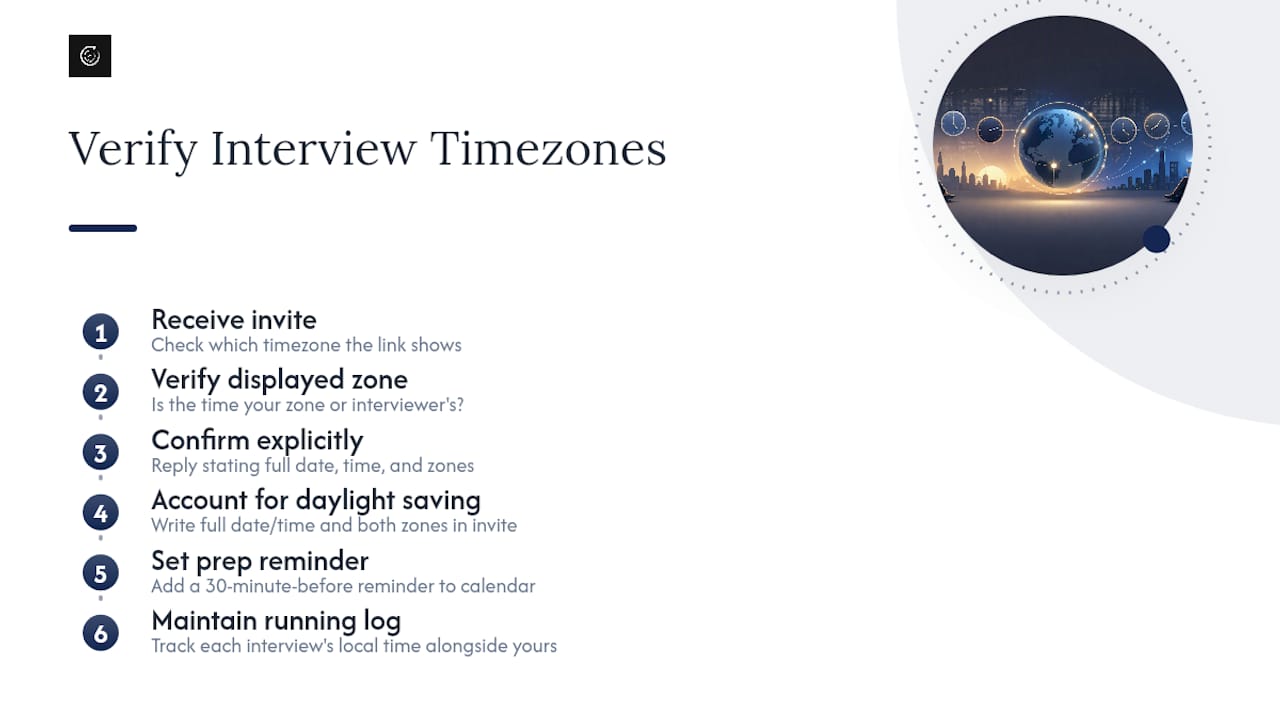
Daylight saving transitions cause real problems here, especially when you’re scheduling across countries that shift on different dates or don’t observe it at all. Write out the full date, time, and both time zones in your calendar invite description, not just the time your calendar app auto-converted, since auto-conversion occasionally breaks across regions with unusual offsets.
If you’re interviewing with a company in a different country, ask directly which time zone the invite uses if it isn’t stated. It’s a completely normal question, and it beats showing up an hour early or, worse, an hour late. Set a calendar reminder 30 minutes before the call, not just at the start time, so you have room to run through your tech checklist without rushing.
For candidates juggling multiple interviews across different companies and zones, keep a simple running log of each one’s local time alongside yours. A missed or double-booked slot reads as disorganized in a way that has nothing to do with your actual qualifications, which makes it a particularly frustrating way to lose ground in a process you were otherwise handling well.
Rehearse Your Answers With Iteration Before The Real Call
Once your camera, lighting, and connection are handled, the next weak point is usually the answer itself, not the equipment. Certain services grade your responses with AI, providing structured feedback on pacing, specificity, and clarity instead of guessing whether an answer landed.
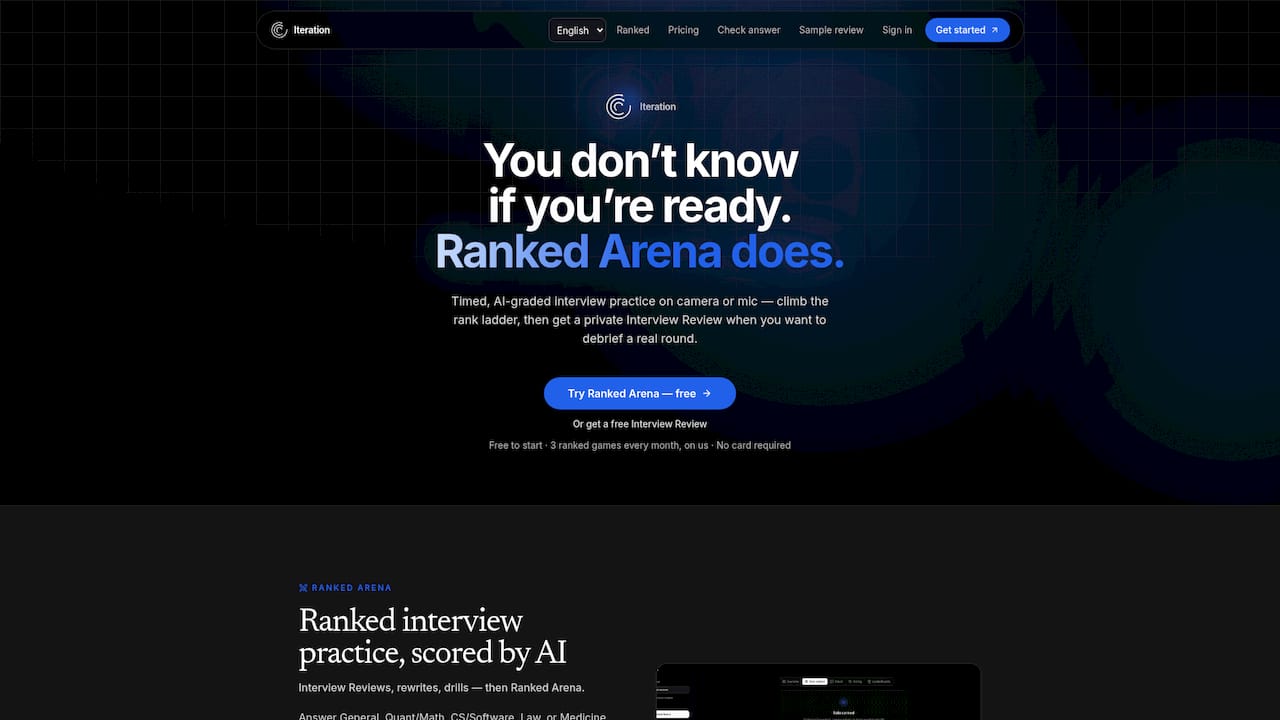
You can paste a single answer or full transcript into such platforms and get a breakdown of what worked and what didn’t, then work through targeted drills built around your specific weak spots. The free tier lets you run a rehearsal now, on camera, using the exact setup you just built, before it counts for real.
Start with one recorded answer through Iteration’s try page to see how the feedback works, or browse the worked answer library if you want models for common behavioral questions first. Either way, run it before your next scheduled interview, not after.
A Reliable Setup Is Part Of The Interview, Not Prep For It
Treat the checklist above as a habit, not a one-time scramble. Run it before every remote interview, and rehearse at least once with your camera on so the routine feels automatic instead of stressful. A prepared, dedicated space signals professional discipline before you’ve answered a single question, and that groundwork is what lets you focus entirely on the conversation once it starts.
— Iteration
Sources
- 5 ways to prepare your space for a virtual interview (ASU W. P. Carey)
- Video Interview Setup Checklist: Camera, Audio, Wi-Fi Guide
- Remote Job Interview Tips: Setup, Answers, Red Flags (OkayCareer)
- Video Interview Tips: Setup, Behaviour and Tech That Wins (Cvida)
- Complete guide to remote video interviews (Interview AiBox)